1
Download TeamSpeak
If you don't already have TeamSpeak installed, download the client for your device from the official site.
Download TeamSpeak Client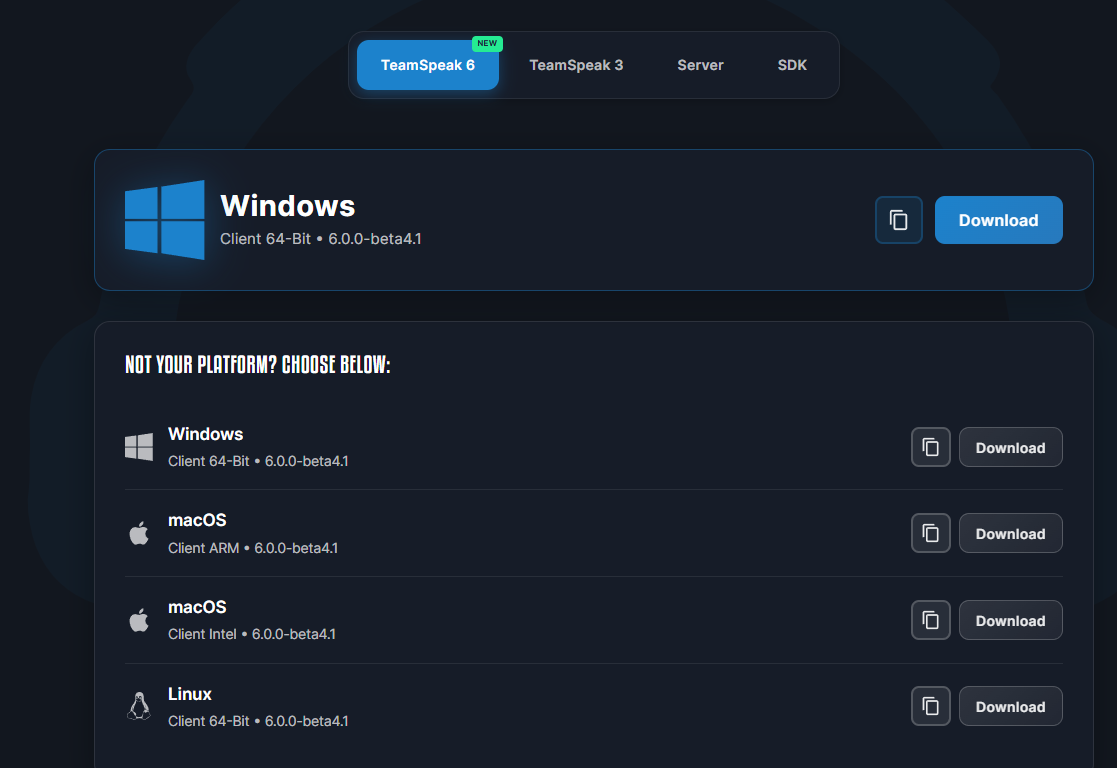
2
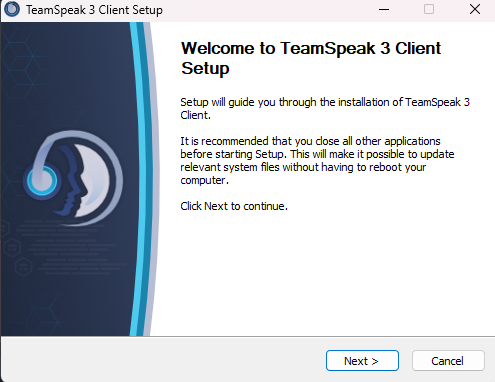
Install and Open It
Run the installer, then launch TeamSpeak once it's finished.
3
Connect to Our Server
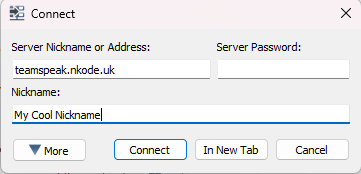
Once TeamSpeak is open, go to Connections > Connect and enter our server address:
teamspeak.nkode.uk
Enter a nickname, then click Connect.
4
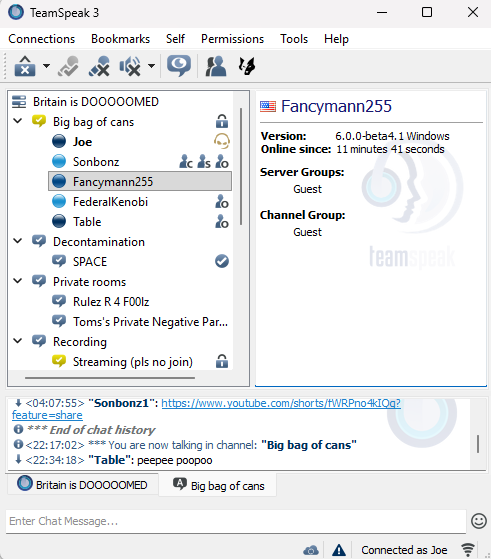
You're In!
You should now see our server's channel list. Join a channel and start talking.
Still stuck?
- Make sure you opened the link with the TeamSpeak app installed, not just in a browser.
- Try copying the server address manually instead of clicking the link.